
Quick Start Guide (Team Users)
This guide will help you quickly set up, customise, and share your ZipCard digital business card.
1. What is ZipCard and why do I have a profile?
ZipCard is your company's digital business card platform. Your profile has been created to help you share your contact details, links, and key resources quickly and professionally.
Your profile ensures you can:
- Represent your company in a consistent and professional way.
- Easily share your information with clients, partners, and colleagues.
- Collect and save contact details from the people you meet.
When should I use my profile?
- In person meetings with clients, prospects, or partners.
- Networking events, conferences, or social gatherings.
- Online via email signatures, LinkedIn, and virtual meetings.
2. How to get started
Access your account
Click the link in the email you received to access your profile, or visit app.zipcard.me.
Customise your profile
You can personalise the following sections:
- Personal Details: Add your name, job title, company information, photos, and personal social media such as LinkedIn.
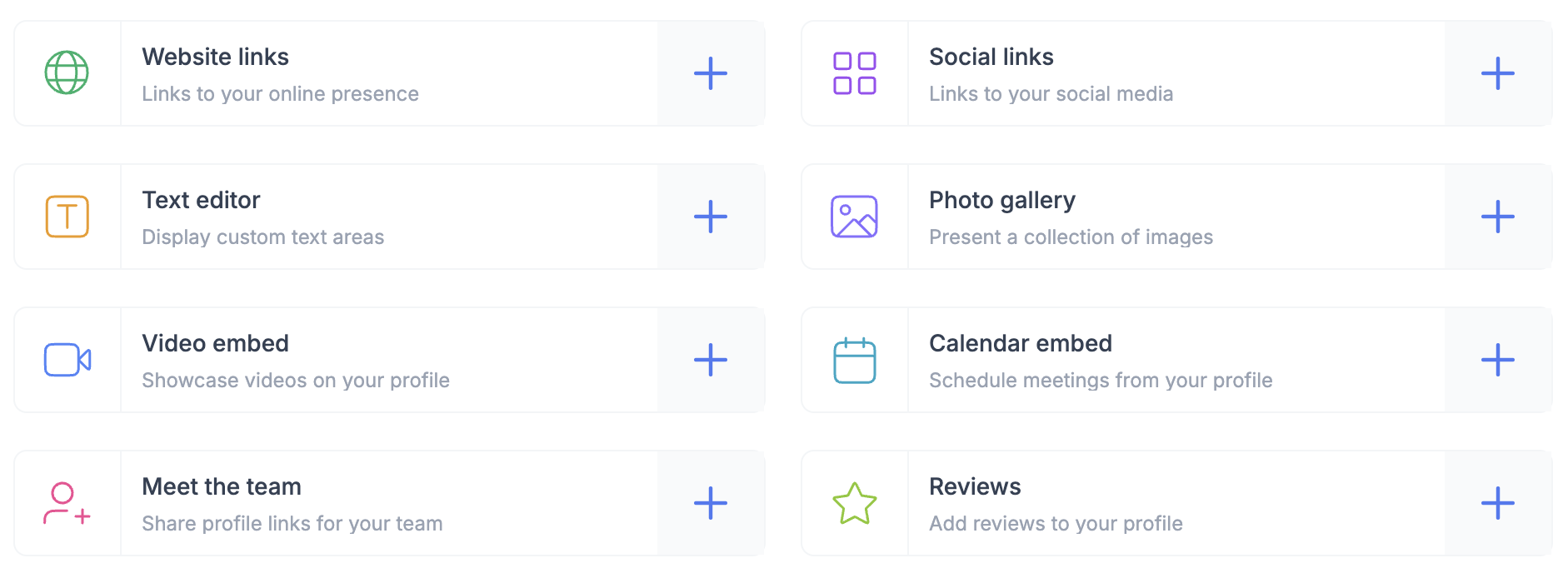
- Content Sections: Include links, photo galleries, reviews, video embeds, and embed a calendar (such as Calendly or HubSpot) for meeting scheduling.
3. How to share your profile
3.1 Add to your digital wallet
Easily share your profile using Apple Wallet and Google Wallet. Once added, open the pass and ask visitors to scan the QR code.
Add To Digital Wallet Now3.2 Add to your email signature
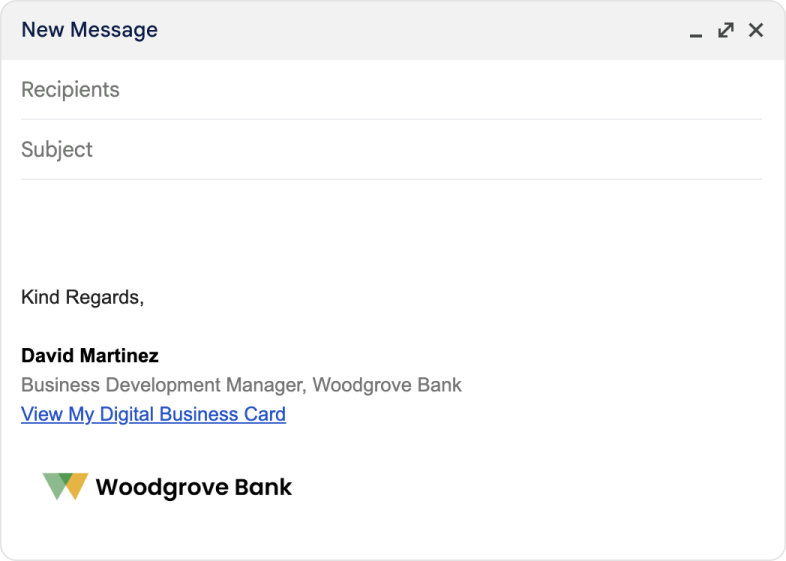
- Copy your profile link.
- Open your email client (e.g., Gmail or Outlook).
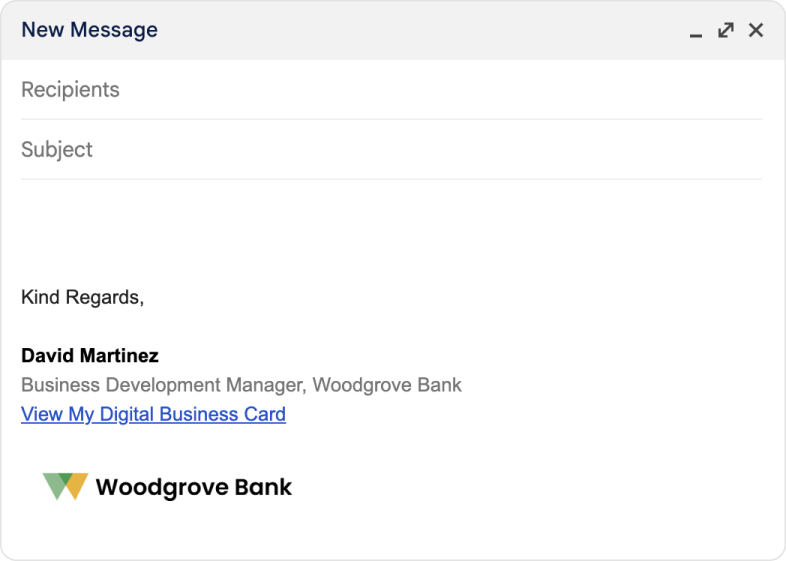
- Go to your signature settings and add text like: "View My Digital Business Card"
- Hyperlink the text to your profile link and save your signature.
4. Using the Connect feature
- Visitors can click "Share Contact Info" to download your contact card and send their details to you.
- They'll receive an email with your information for easy follow-up later.
- All collected contacts are saved in your profile for quick access or export.
5. Add to your phone home screen
Since there's no app to download, adding your card to your home screen is the most efficient way to keep your profile readily available.
6. Recap and next steps
- Customise Your Profile: Access your profile here.
- Add Your Profile Everywhere: Save it to your digital wallet for in-person sharing and embed it in email signatures and LinkedIn.
Need help? Click the chat button in the bottom right or email us.
Quick Start Guide (Solo Users)
This guide will help you quickly set up, customise, and share your ZipCard digital business card.
Welcome to ZipCard! We're a digital business card platform that helps you grow your network by making it easy to share your contact information, showcase your brand, and build stronger connections anywhere, anytime.
Check out some example profiles: zipcard.me/#customers
1. How to get started
Access your account
Click the link in the email you received to access your profile, or visit app.zipcard.me.
Customise your profile
- Personal Details: Add your name, job title, company information, photos, and personal social media such as LinkedIn.
- Content Sections: Include links, photo galleries, reviews, video embeds, and embed a calendar (such as Calendly or HubSpot) for meeting scheduling.
2. How to share your profile
2.1 Add to your digital wallet
Easily share your profile using Apple Wallet and Google Wallet. Once added, open the pass and ask visitors to scan the QR code.
Add To Digital Wallet Now2.2 Add to your email signature
- Copy your profile link.
- Open your email client (e.g., Gmail or Outlook).
- Go to your signature settings and add text like: "View My Digital Business Card"
- Hyperlink the text to your profile link and save your signature.
3. Using the Exchange Contact feature
- Visitors can click "Exchange Contact" to download your contact card and send their details to you.
- They'll receive an email with your information for easy follow-up later.
- All collected contacts are saved in your profile for quick access or export.
4. Add to your phone home screen
Since there's no app to download, this is the most efficient way to keep your profile readily available. Learn how here (it takes max 30 seconds!):
📱 Add ZipCard to Your Phone Home Screen →
5. Recap and next steps
- Customise Your Profile: Access your profile here.
- Add Your Profile Everywhere: Save it to your digital wallet and embed it in email signatures and LinkedIn.
Need help? Click the chat button in the bottom right or email us.
How to collect visitors' contact details
This guide covers how the Exchange Contact form works when your profile loads for the visitor.
The Exchange Contact feature helps you exchange details seamlessly with anyone who visits your profile.
- Visitors can click "Exchange Contact" to download your contact card and send their details to you.
- They'll receive an email with your information for easy follow-up later.
- All collected contacts are saved in your profile for quick access or export.
Need a hand? Click the chat button in the bottom right or email us.
Add ZipCard to your phone home screen
A simple guide to add your ZipCard profile to your phone's home screen for quick and easy access.
Apple iPhone
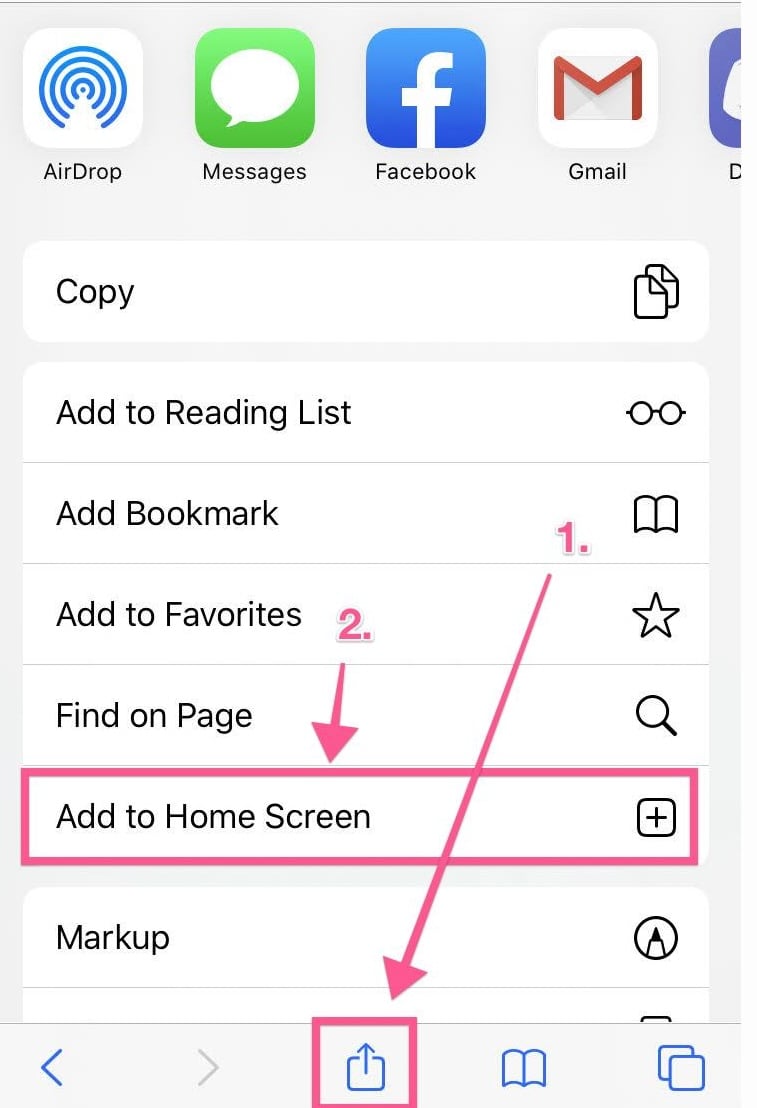
- Open Safari on your iPhone.
- Navigate to your ZipCard profile by entering your profile URL into the address bar.
- Tap the Share icon (a square with an arrow pointing up) at the bottom of the screen.
- Scroll down and select Add to Home Screen.
- Customise the name if desired, then tap Add.
Android Phone
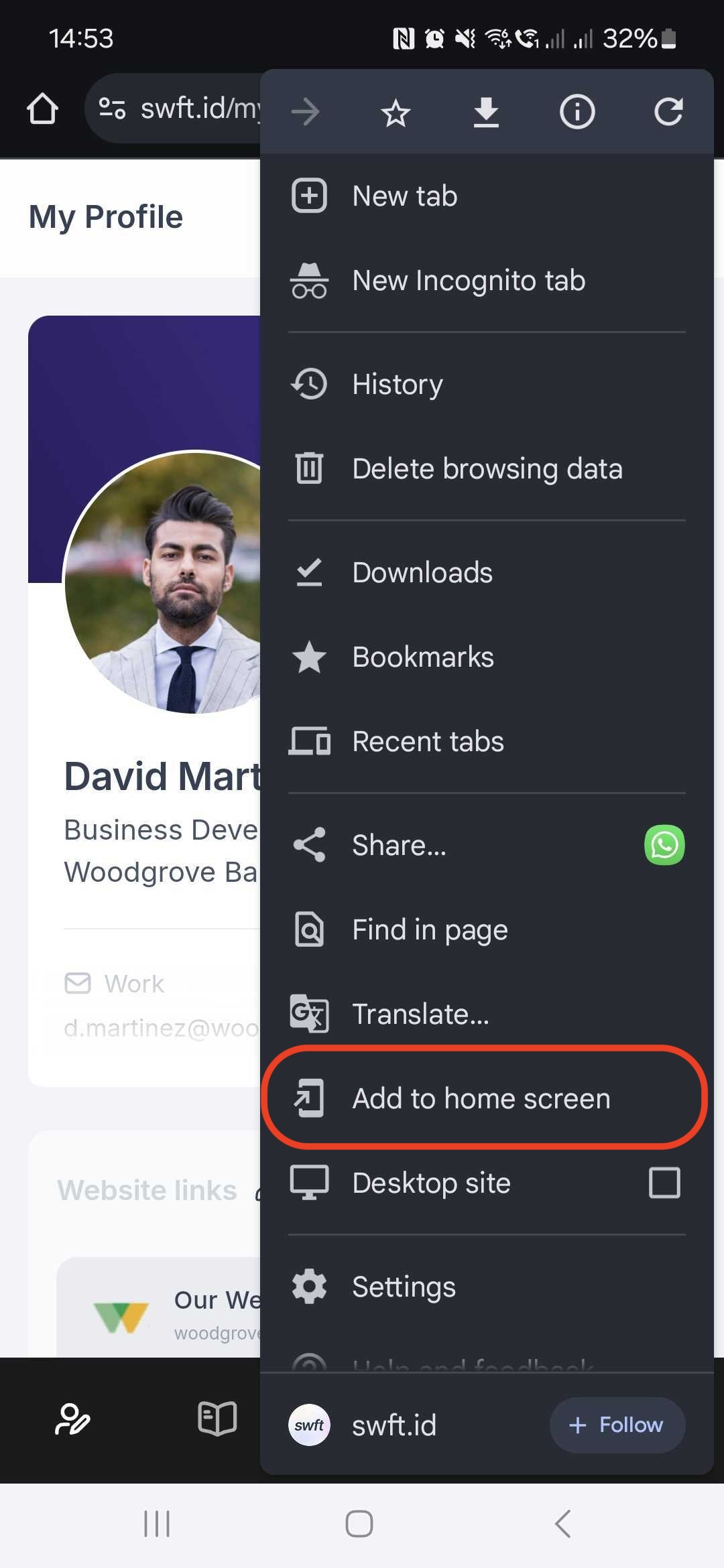
- Open the browser on your Android phone.
- Navigate to your ZipCard profile by entering your profile URL into the address bar.
- Tap the Menu icon (three dots in the top-right corner).
- Select Add to Home screen.
- Follow the on-screen instructions to confirm.
Need help? Click the chat button in the bottom right or email us.
How to use digital wallet passes
Share your profile easily through Apple Wallet and Google Wallet.
Digital wallet passes are a fast and convenient way to share your ZipCard profile. By scanning the QR code, anyone can instantly view your profile from their browser.
Your pass stays current — if anything changes on your profile, the pass updates automatically without needing a new one.
Generate your digital wallet pass
Step 1: Log in to ZipCard and go to "Add to digital wallet" from the main menu:
Add To Digital Wallet NowStep 2: Click the download link button. The system will automatically detect iPhone (for Apple Wallet) or Android (for Google Wallet).
Accessing your pass
Open your digital wallet app and you'll find the pass listed there. When sharing your profile, open the pass and ask them to scan the QR code displayed.
An internet connection is necessary for them to view your profile.
Need a hand? Click the chat button in the bottom right or email us.
How to add your profile link in email signatures
Embed your ZipCard profile in your email signature so contacts can access your details in one click.
Google (Gmail)
- Open Gmail and click the gear icon in the top-right corner.
- Select See all settings.
- Scroll down to the Signature section.
- Click Create New (or edit an existing signature).
- Type your link text (e.g., "View My Digital Business Card") and highlight it.
- Click the Link button in the toolbar and paste your ZipCard profile link.
- Click OK, then Save Changes.
Outlook (Desktop App)
- Open Outlook and click File in the top-left corner.
- Select Options, then click Mail from the sidebar.
- Click Signatures.
- In the Email Signature tab, select New (or choose an existing signature to edit).
- Type your link text and highlight it.
- Click the Insert Hyperlink button and paste your ZipCard profile link.
- Click OK, then click Save.
Need a hand? Click the chat button in the bottom right or email us.
How to add your profile link in your LinkedIn bio
Add your ZipCard profile link to LinkedIn so visitors can access your full profile in one click.
- You already had one set up previously
- You pay for LinkedIn Premium Business (not regular Premium)
- You're using a Premium Company Page
However, you can still add a website within your contact info. Follow LinkedIn's official guide here: Add or remove a website from your LinkedIn profile.
This guide will show you how to add your ZipCard profile link to your LinkedIn bio.
- Log in to LinkedIn: Go to linkedin.com and sign in.
- Go to your profile: Click on your profile picture or name.
- Click the Edit icon: The pencil icon next to your profile photo and headline.

-
Add your ZipCard link:
- Scroll down to the Website Links section.
- Click Add a Website.
- Paste your ZipCard profile link.

- Customise the link text (optional): Change the label to something like "View My Profile" or "My Digital Business Card".
- Save changes: Click Save.
Need a hand? Click the chat button in the bottom right or email us.
Profile custom domains
Set up a custom domain so your team's profiles use your company's own URL — for example, card.yourdomain.com/username.
Overview
By adding a custom domain, you can enhance the trust, credibility, and branding of your ZipCard profiles. Instead of zipcard.me/username, your profiles will use card.yourdomain.com/username.
Steps to add a custom domain
-
Enter the URL to use for profiles
Navigate to domain settings in your ZipCard dashboard:
- Individual users: app.zipcard.me › Settings › Advanced
- Team admin users: app.zipcard.me › Admin › Settings › Custom Domain
Enter your subdomain (e.g.,
card.yourdomain.com) and click Add Domain.ℹ️ The subdomain can be anything. Popular options:connect,contact,vcard,meet. -
Add the CNAME record to your DNS
Field Value Host / Name card (or your chosen subdomain) Value / Points email us ⚠️ Cloudflare users only: Disable Proxied. The record must be set to DNS Only or the custom domain will not work correctly.Helpful links for DNS configuration:
DNS propagation can take up to 24 hours after you save the record.
ℹ️ If you need help at any point, click the chat button in the bottom right and we'll get back to you right away.
Need a hand? Click the chat button in the bottom right or email us.
ZipCard Team Admin Guide
How to use the team dashboard for ZipCard Team administrators.
This guide walks you through managing users, applying templates for consistent branding, and tracking analytics across your team.
1. Accessing the Admin Dashboard
As an admin, you'll see an Admin button on your profile. Click it to access the admin dashboard, where you can manage all aspects of your team's profiles.
2. Dashboard Analytics
In the dashboard, you'll find essential analytics at a glance:
- View profile views
- Track connections
- Monitor recent activity across your team's profiles
You can filter these analytics by group for a clear picture of team engagement.
3. View Team Connections
All contacts your team collects are stored in the Connections tab:
- View and add notes to connections
- Filter connections by team member
- Export connections by date range to add new leads to your CRM
4. Customising Templates
Head to Templates to customise your team template. Add your logo and cover photo for a uniform look across all profiles. Set user permissions to control what each team member can customise.
5. Settings
- Disable or enable fields on the contact exchange form
- Apply tracking pixels for Google Analytics, Facebook, and LinkedIn
- Generate an invite link for easy onboarding
- Enable digital wallet passes and customise their branding
6. Adding and Managing Users
In the Users tab, you can create and manage each user individually — view their analytics and connections, and update profile details.
7. User Onboarding
Once users are added, they'll receive an email to access their account and complete setup. Encourage your team to share their profiles widely — in person with digital wallet passes, on LinkedIn, and in their email signatures.
Need a hand? Click the chat button in the bottom right or email us.
How to embed tracking scripts
Add Meta Pixel, Google Analytics, or LinkedIn Insight Tag to your ZipCard profiles to monitor engagement, retarget visitors, and measure ROI.
Why add tracking scripts?
- Track Engagement — Understand who is viewing your profiles and how they interact with your content.
- Retarget Visitors — Run targeted ad campaigns to people who have already viewed your ZipCard profiles.
- Measure ROI — Link networking activity back to marketing performance.
Set up your tracking tools
Need a hand? Click the chat button in the bottom right or email us.
How to use sub companies
Manage multiple brands or business entities under a single parent company account.
The sub companies feature allows administrators to manage multiple brands or business entities under a single parent company. Each sub company operates independently — with its own users, templates, groups, and branding — but can be managed centrally.
Parent Company: Agency X
Sub Companies: Acme Co. Ltd, Vista Landscaping, ABC Media
Who it's perfect for
Separate branding and user management for each branch, managed from one place.
Oversee multiple subsidiaries or business units under a single account.
Maintain consistent management while keeping departments fully independent.
Manage several client brands under one account with full separation between them.
How to access sub companies
Go to your parent company admin dashboard at app.zipcard.me, then open Sub Companies from the left-hand menu.

Click Access next to any sub company to switch into that company's dashboard. A banner at the top will confirm your current context.

Once inside a sub company, configure it exactly like a standalone account. All settings are independent and will not affect the parent or any other sub companies.

When finished, click Return to [Parent Company Name] in the top right to go back.
How licensing works
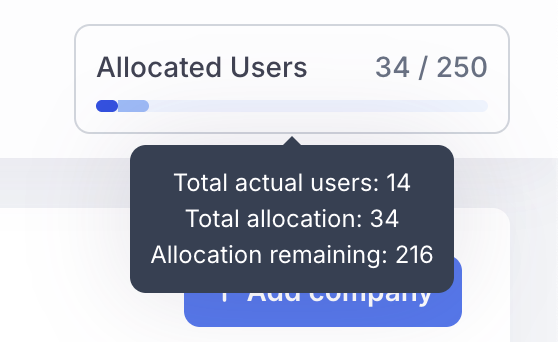
Your total licence usage combines the number of users in the parent company plus the user limits assigned to each sub company.
Plan includes 250 user slots.
Parent company: 4 users. Sub companies: 10 + 5 + 15 users.
Total allocated: 34 of 250 slots used.
There is no limit to the number of sub companies you can create — only the total user allocation across all sub companies combined.
Need a hand? Click the chat button in the bottom right or email us.
Quick Start Guide — NFC Card
Get your ZipCard NFC card set up and start sharing in minutes.
Tap via NFC or scan the QR code
Tap to iPhone: Hold the card to the top of the phone while the screen is on.
Tap to Android: Turn on NFC in your phone settings and hold the card at the back middle of the phone with the screen on.
Alternatively, scan the QR code on the card to launch your profile directly.
Create a profile or link an existing one
Follow the steps on screen to create a new profile. If you already have a ZipCard account, you can link your existing profile instead.
Once you have created or linked a profile, your NFC card will be activated.
Customise your profile
Add all your content on your profile page — contact details, links, social accounts, photo galleries, videos, and more.
For further customisation, use the Edit Profile button to update your contact information, company details, and other settings.
Add to Apple or Google Wallet
To share your profile without your physical card, select Wallet from the main menu and download the digital wallet pass to your phone.
Start sharing!
And that's it — happy networking!
Need a hand? Click the chat button in the bottom right or email us.
Frequently Asked Questions
Quick answers to the most common questions about ZipCard.
Do people need an app to view my ZipCard?
Can I update my details after sharing my card?
Can I create more than one digital card profile?
Can I use ZipCard like a link-in-bio page?
Do I need to buy a physical NFC card separately?
How does ZipCard compare to other similar platforms?
Will my team actually use it?
Do you offer flexible pricing for big teams?
Can I sign up directly?
Is ZipCard eco-friendly?
Contact Us
We're here to help. Reach out via email or find us on social media.
Email support
Follow us
Stay up to date with the latest ZipCard news, tips, and updates.